Alchemer Toolbox Integration
This guide walks you through integrating the DQCToolBox with Alchemer surveys to capture device-quality data on each response.
The integration runs across the first two pages of each survey (so your survey needs at least a page 1 and a page 2), using a per-page JavaScript Action on each:
- Page 1 — a script asks the DQC Toolbox for a
requestIdand stores it (insessionStorage) so it survives the move to page 2. - Page 2 — a script reads that
requestId, fetches the full quality data for it, and writes the values into a hidden DQC fields question, so the data is saved with the response.
The setup has three parts:
- Part 1 — Get your API key · do once.
- Part 2 — Build your reusable DQC components · do once, in your Research Library — reused by every survey.
- Part 3 — Set up each survey · repeat per survey, using the components from Part 2.
Part 1 · Get your API key
Make sure you have a general key from the DQCO-OP platform. If you don't have one, follow these steps to generate one.
You'll use a key in two places: the page-2 script you build in Part 2, and the page-1 script you add per survey in Part 3. The page-1 script only loads the toolbox, so it can take a public key or your general key. See Which key for each integration.
The page-2 script reads GET /tools/request from the respondent's browser. A
public key cannot read results, and a
private key is refused from a browser, so both
answer 403 there. Moving that read to an Alchemer Webhook Action, so it runs on a server, is what
would allow a key pair; that path is not documented yet.
Part 2 · Build your reusable DQC components (once)
Build these in your Research Library as Global Questions / Library Components. You only do this once — then import them into every survey (Part 3). Alchemer Global Questions let a single Library Component hold multiple elements, so each component already carries its required fields, CSS classes, hidden-by-default rule, numbering settings, and (for page 2) its script.
2.1 · (Recommended) The "DQC requestId" component — page 1
Recommended. This is a safety net for page-1 drop-offs — respondents who never reach page 2. The page-1 script always carries the requestId to page 2 via sessionStorage, and the page-2 component captures it there, so the survey still works without this field. Adding it means the requestId is also saved directly on page 1, so you keep it even if a respondent abandons before page 2 — which is why we recommend including it.
Build it once as a Library Component so you can reuse it across surveys:
- Research Library → Global Questions → Create a Library Component → Individual Questions.
- Element name: we recommend
DQC requestId. - Question Type = Textbox (a single textbox, not a Textbox List).
- Do NOT require it.
- Logic tab → Logic Rule → "Hide this question by default."
- Layout tab → CSS Class Name →
dqcRequestIdField(the page-1 script finds it by this class) - Layout tab → Question Numbering → "Skip numbering for this question."
- Save, then Publish.
If this field is absent, the page-1 script simply skips filling it — no error. It is purely a convenience for capturing drop-offs. You'll import it onto page 1 in Part 3.
2.2 · The "DQC fields" component — page 2 (required)
On page 2, two things work together: a hidden DQC fields question that stores the values, and a JavaScript Action that fetches the data and fills it. You build both the hidden question and the script in one component — then import that single component into any survey.
A Library Component is created a single time and reused across all your surveys. It already carries the required question fields, Alias, CSS class, hidden-by-default rule, numbering settings, and the page-2 script — so every survey gets a correctly configured page 2 with no manual setup.
Where to build it: Research Library → Global Questions → Create a Library Component.
Add the hidden "DQC fields" question
-
Click Create a Library Component → Individual Questions.
-
Element name: anything memorable — we recommend
DQC fields. -
Click Question, then set Question Type = Textbox List.
-
"What question do you want to ask?" — we recommend simply entering
DQC. The exact wording doesn't matter (the question is hidden, so it's never shown to respondents), but keeping it short and consistent makes the component easy to recognize later. -
Under Multiple Choice Options, add the exact field names, one per row (Prefill is not needed):
requestId
participantId
dataTrustScore
persona
deviceScore
country
subdivision
isDuplicate
surveyId
deviceFailures -
Do NOT check "Require this question."
-
Open the Logic tab:
- Logic Rule → select "Hide this question by default."
- Alias → enter
DQC
-
Open the Layout tab:
- CSS Class Name → enter
dqcCustomClassName(the page-2 script finds the question by this class) - Question Numbering → select "Skip numbering for this question" (so the real questions on the page keep correct numbering)
- CSS Class Name → enter
-
Save the question.
The Alias DQC and the CSS class dqcCustomClassName are both required. The CSS class is how the page-2 script locates the question on the page (document.querySelector(".dqcCustomClassName")); set both exactly as shown.
Add the page-2 script to the same component
In the same component (right below the hidden DQC fields question), add a second element: Add Action → JavaScript. This script reads the requestId carried over from page 1, fetches the full quality data, and fills the DQC fields question above.
Then:
- Copy the code below and paste it in exactly as-is — do not wrap it in
<script>tags. Alchemer adds those automatically, so the snippet is intentionally just the JavaScript. - Replace
YOUR_GENERAL_KEYin the pasted code with your general key from Part 1.
(function () {
  "use strict";

  var API_BASE      = "https://api.dqco-op.com";
  var GENERAL_DQC_API_KEY = "YOUR_GENERAL_KEY"; // ← replace with your general key
  var SID           = (location.pathname.match(/\/s3\/(\d+)/) || [])[1] || "x";
  var RID_KEY       = "dqc-rid-" + SID;       // must match page 1's scoped key
  var DQC_CLASS     = "dqcCustomClassName";   // CSS class of the page-2 full-fields question
  var NOT_PROCESSED = "Submission too quick, data not processed";

  // requestId values that aren't a real id — don't bother fetching, represent them directly.
  var SPECIAL = { "Submission too quick, data not processed":1, "Could not process":1,
                  "Request-Blocked":1, "Wrapper Tampering":1, "Deactivated-Key":1 };

  var DEFAULTS = {
    requestId: NOT_PROCESSED, participantId: NOT_PROCESSED,
    dataTrustScore: 0, persona: "NONE", deviceScore: 0,
    country: NOT_PROCESSED, subdivision: NOT_PROCESSED,
    isDuplicate: false, surveyId: NOT_PROCESSED,
    deviceFailures: [NOT_PROCESSED]
  };

  function getQuestion(){ return document.querySelector("." + DQC_CLASS); }
  function labelForInput(q, input){
    var l = input.getAttribute("aria-label"); if (l && l.trim()) return l.trim();
    if (input.id){ var lbl = q.querySelector('label[for="' + input.id + '"]'); if (lbl && lbl.textContent.trim()) return lbl.textContent.trim(); }
    return "";
  }
  function fillQuestion(data){
    var q = getQuestion(); if (!q) return;
    var merged = Object.assign({}, DEFAULTS, data || {});
    var inputs = q.querySelectorAll('input[type="text"], input:not([type]), textarea');
    Array.prototype.forEach.call(inputs, function(input){
      var label = labelForInput(q, input); if (!label || !(label in merged)) return;
      var v = merged[label]; if (Array.isArray(v)) v = v.join(", ");
      input.value = String(v);
      input.dispatchEvent(new Event("input",  { bubbles: true }));
      input.dispatchEvent(new Event("change", { bubbles: true }));
    });
  }
  // Represent a non-id requestId directly, without a fetch.
  function specialPayload(msg){
    return { requestId:msg, participantId:msg, dataTrustScore:0, persona:"NONE", deviceScore:0,
             country:msg, subdivision:msg, isDuplicate:false, surveyId:msg, deviceFailures:[msg] };
  }

  function run(){
    fillQuestion({});  // write defaults immediately
    var rid = null; try { rid = sessionStorage.getItem(RID_KEY); } catch (e) {}
    if (!rid) { return; }                                       // no requestId carried over; leave defaults
    if (SPECIAL[rid]) { fillQuestion(specialPayload(rid)); return; }

    (async function(){
      try {
        var resp = await fetch(API_BASE + "/tools/request/" + encodeURIComponent(rid), {
          method: "GET",
          headers: { "Authorization": "apikey " + GENERAL_DQC_API_KEY, "Accept": "application/json" }
        });
        if (!resp.ok) throw new Error("HTTP " + resp.status);
        var data = await resp.json();
        fillQuestion(data);
      } catch (e) {}   // on any failure the defaults remain
    })();
  }

  if (document.readyState !== "loading") run();
  else document.addEventListener("DOMContentLoaded", run);
})();
Publish the component
With both elements added (the hidden question and the script), Publish the component in the Library.
An unpublished component can't be imported into surveys. After adding both elements, click Publish in the Library.
Part 3 · Set up each survey
For every new survey, do the following using the components you built in Part 2.
3.1 · Add the preconnect links (survey theme)
The preconnect links are a small performance hint that warms up the connection to the DQC servers. They are not required for the scripts to work, but they improve timing — and the theme <HEAD> is the only place they're effective (a JavaScript Action runs too late to benefit).
Style tab → </> HTML/CSS Editor → CUSTOM <HEAD> → paste the two <link> tags → Save Changes (the theme <HEAD> is the only place preconnect takes effect)
</> HTML/CSS Editor button?The HTML/CSS Editor button is in the bottom-right corner of the Style page and isn't visible at first glance. Scroll all the way down the page — once you reach the bottom, you'll see the </> HTML/CSS Editor button on the right side.
The two <link> tags to paste:
<link rel="preconnect" href="https://api.dqco-op.com" crossorigin="anonymous">
<link rel="preconnect" href="https://fpmetrics.dqco-op.com" crossorigin="anonymous">
3.2 · Import your DQC components onto the pages
This is where you use the components you built in Part 2. In the Build tab, click Import Library Item and place each one:
DQC fields→ place on page 2 (required). Because the component bundles both elements, this single import drops the hidden question and the page-2 script onto the page at once.DQC requestId→ place on page 1 (recommended — see Part 2.1).
Their exact position on the page doesn't matter. Once imported, the page-2 Library item appears as a single block containing both elements — the hidden DQC fields question (Alias DQC, Custom CSS Class dqcCustomClassName, skip numbering) and the JavaScript Action beneath it:
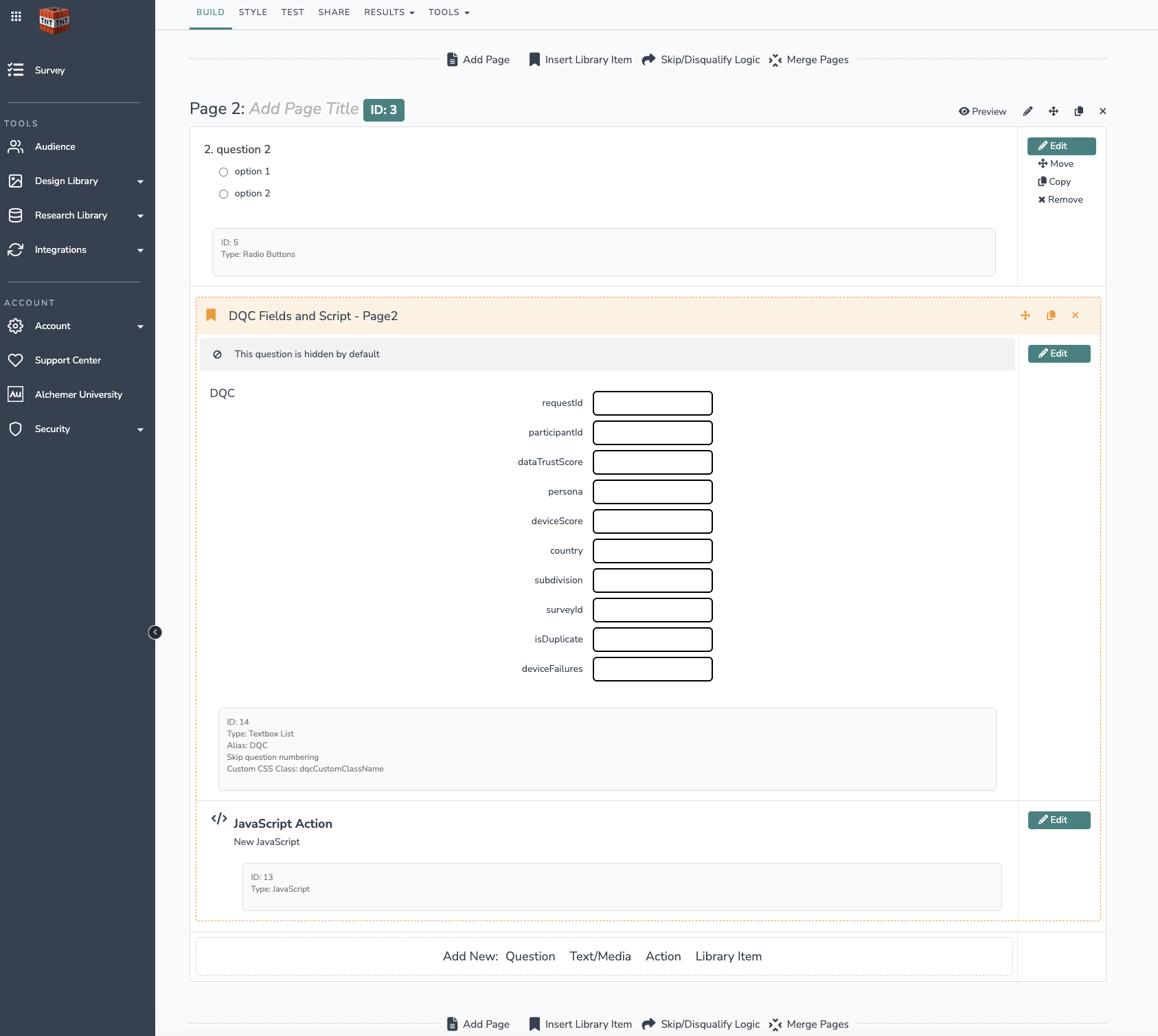
The page-2 script fetches the data after the respondent lands on page 2, and it must finish before they submit the page. Make sure page 2 has genuine survey questions so there's enough dwell time for the fetch to complete — otherwise the component saves the default values (best-effort capture).
3.3 · Add the Page 1 JavaScript Action
This script gets a requestId from the DQC Toolbox and stores it for page 2.
Because this script carries your survey-specific surveyId (see below), it should be created fresh inside each survey, not saved as a shared Library component. (The DQC components from Part 2 are reusable; only this page-1 script is per-survey.)
In the survey Build tab, on page 1, click Add Action → JavaScript, then:
- Copy the code below and paste it in exactly as-is — do not wrap it in
<script>tags. Alchemer adds those automatically, so the snippet is intentionally just the JavaScript. - Replace
YOUR_GENERAL_OR_PUBLIC_KEYin the pasted code with your public key (recommended) or your general key.
(function () {
  "use strict";

  // Your public key (recommended) or your general key. Visible in the page by design.
  var GENERAL_OR_PUBLIC_DQC_KEY = "YOUR_GENERAL_OR_PUBLIC_KEY"; // ← replace
  var DQC_ENDPOINT  = "https://api.dqco-op.com/tools/toolbox/" + GENERAL_OR_PUBLIC_DQC_KEY;
  var SURVEY_ID     = "";                    // optional survey identifier (empty → toolbox uses the page URL)
  var RID_CLASS     = "dqcRequestIdField";   // CSS class of the OPTIONAL page-1 requestId question
  var NOT_PROCESSED = "Submission too quick, data not processed";
  // sessionStorage key scoped per Alchemer survey id (from /s3/<id>/) so two surveys can't collide in one tab
  var SID           = (location.pathname.match(/\/s3\/(\d+)/) || [])[1] || "x";
  var RID_KEY       = "dqc-rid-" + SID;

  function fillRid(v){
    var q = document.querySelector("." + RID_CLASS); if (!q) return;
    var input = q.querySelector('input[type="text"], input:not([type]), textarea'); if (!input) return;
    input.value = v || "";
    input.dispatchEvent(new Event("input",  { bubbles: true }));
    input.dispatchEvent(new Event("change", { bubbles: true }));
  }

  function run(){
    try { sessionStorage.removeItem(RID_KEY); } catch (e) {}  // clear any stale value from a prior attempt in this tab
    fillRid(NOT_PROCESSED);                                    // default — never blank (only if the field exists)
    (async function(){
      try {
        var mod = await import(DQC_ENDPOINT);
        if (!mod || !mod.DQCToolBox || typeof mod.DQCToolBox.getIdentityRequestId !== "function")
          throw new Error("getIdentityRequestId missing");
        var res = await mod.DQCToolBox.getIdentityRequestId(SURVEY_ID);
        var rid = (res && res.requestId) ? res.requestId : "Could not process";
        try { sessionStorage.setItem(RID_KEY, rid); } catch (e) {}
        fillRid(rid);
      } catch (e) {}
    })();
  }

  if (document.readyState !== "loading") run();
  else document.addEventListener("DOMContentLoaded", run);
})();
Page 1 then holds the JavaScript Action (and, optionally, the DQC requestId field from Part 2.1):
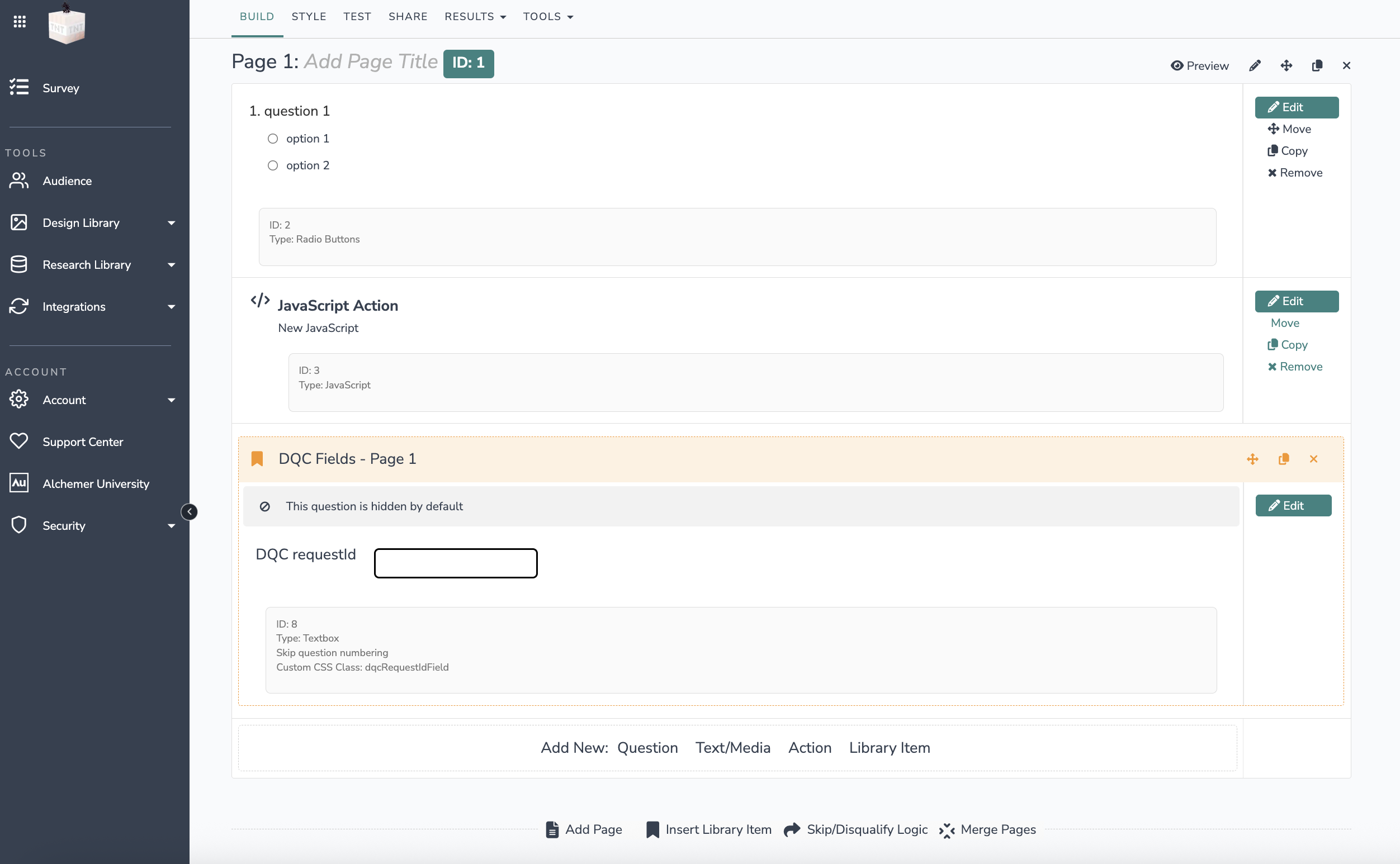
Both scripts write the default values immediately, then overwrite them with the real values as soon as the response arrives. They never block the respondent — if someone advances before the data is ready, the defaults are saved (best-effort capture).
(Optional) Set a custom surveyId
By default (SURVEY_ID = "") the Toolbox uses the page URL (hostname + pathname) as the survey identifier. To track a survey explicitly, set a string in the page-1 script above:
var SURVEY_ID = "Brand Study 2026";
💡 Pro Tip: Use different survey IDs for testing vs. live surveys (e.g., "Brand Study 2026 Testing" while building, then change to "Brand Study 2026" before going live). This helps separate test data from actual survey responses in the DQCO-OP dashboard.
These survey IDs appear in the DQCO-OP dashboard and make it simple to filter and analyze survey-level results. For each survey ID you can view key metrics such as the average, lowest, and highest device score, the duplication rate, and common device failures (for example: Bot Detection, Timezone Mismatch, Incognito Mode, Proxy/VPN usage, etc.).
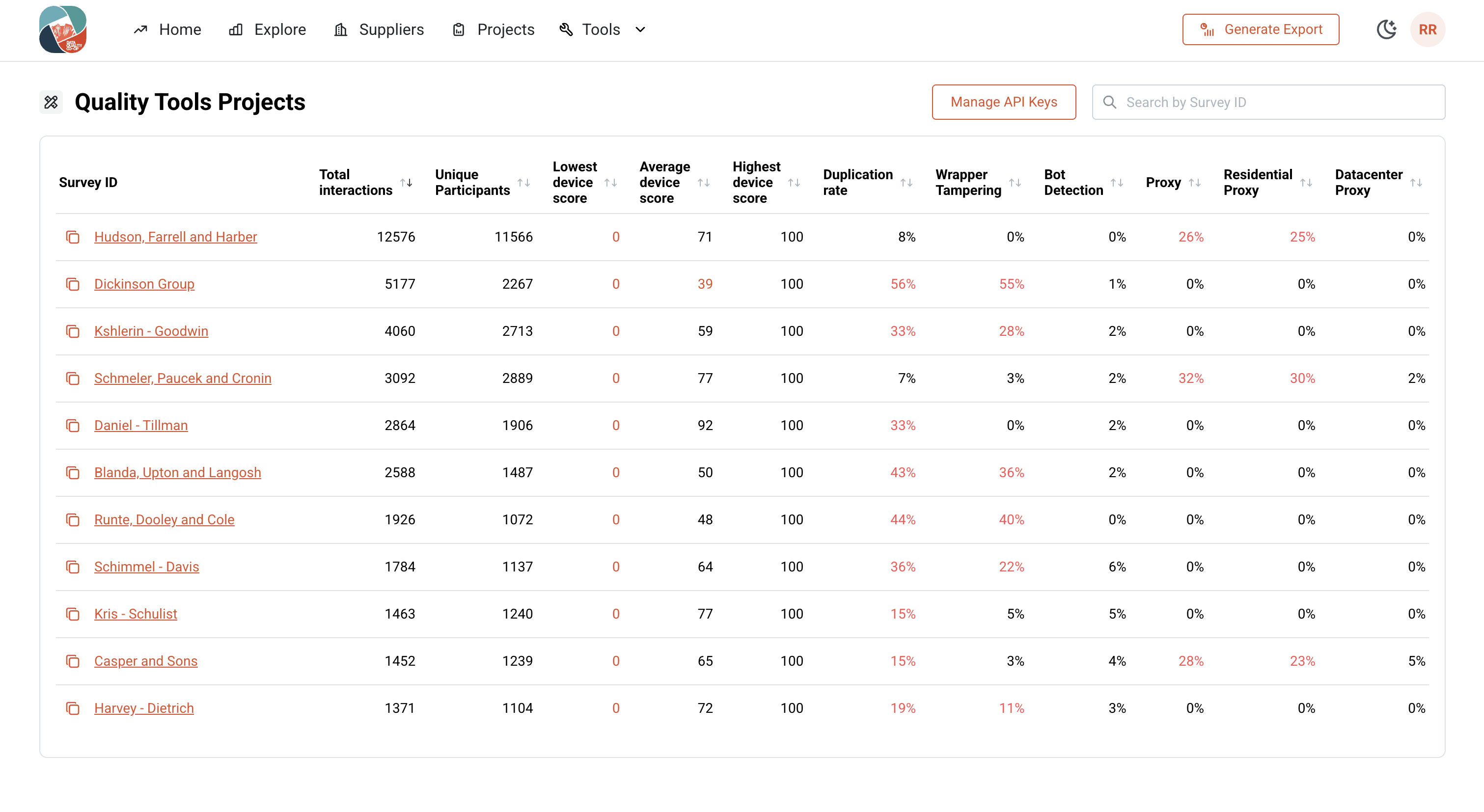
Figure: Quality Tools — Survey ID view in the DQCO-OP dashboard.
Viewing Quality Tools Data in Your Survey Responses
The captured values are stored in the hidden DQC fields question. There are three ways to view them, depending on whether you want a quick look or the complete dataset.
Option 1: Individual Responses (quick look)
Go to the Results tab → Individual Responses and open any response.
By default the DQC fields won't be visible at first glance — the grid only shows a handful of columns. To see them, click Customize and use the Customize Individual Response Grid Columns dialog to select the DQC fields you want (for example deviceScore, dataTrustScore, persona, isDuplicate). Once selected, the values appear inline for each response.
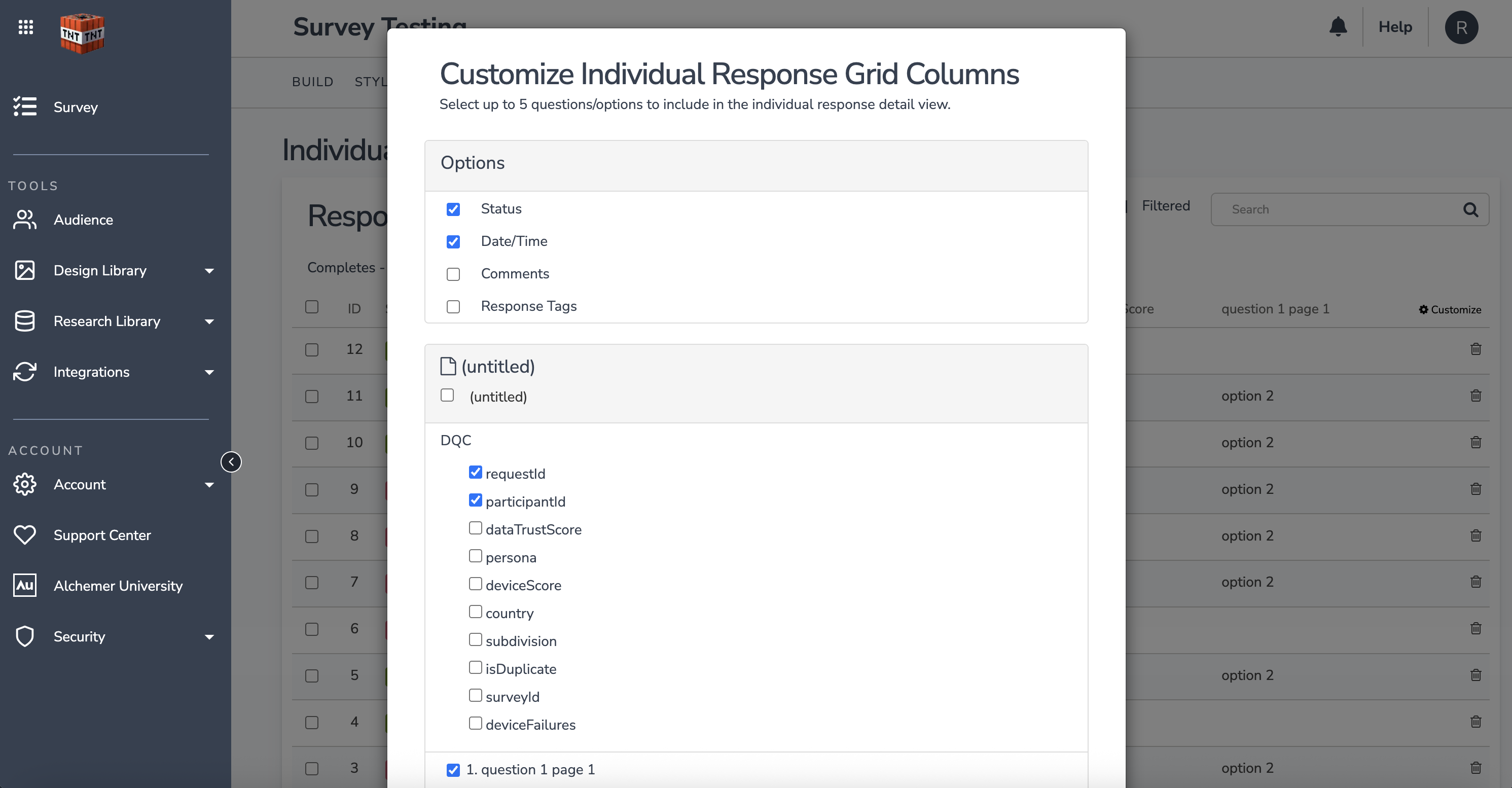
The dialog lets you select up to 5 questions/options for the grid. If you need to see more than five DQC fields at once, use the Export (Option 2) instead.
Option 2: Export (all values)
To see every DQC field at once, go to the Results tab → Exports and create a new export as CSV/Excel or PDF.
The DQC values appear as their own columns — for example requestId:DQC, deviceScore:DQC, dataTrustScore:DQC, and so on. This is the most reliable way to confirm that all DQC fields were saved correctly.
Option 3: Reports (full response report)
Under the Results tab → Reports, you can build a report that includes the DQC fields to review the full set of responses together — useful for sharing results or seeing aggregate quality across the survey.
For a quick confirmation that capture is working, the Export (Option 2) is the fastest check — it shows all DQC fields in one place without any column configuration.
✅ Summary
Once:
- Get your keys (Part 1): a general key for page 2, and a public key or the same general key for page 1.
- Build two reusable Library Components (Part 2):
- (Recommended)
DQC requestId— a hidden Textbox (classdqcRequestIdField) for page 1, to capture page-1 drop-offs. DQC fields(required) — a hidden Textbox List (AliasDQC, classdqcCustomClassName, hidden, skip-numbering) plus the page-2 JavaScript Action, bundled in one component.- Publish both components.
- (Recommended)
Per survey (Part 3):
- Add the preconnect links to the theme CUSTOM
<HEAD>. - Import the components:
DQC fieldsonto page 2 (required) andDQC requestIdonto page 1 (recommended). Give page 2 real content for dwell time. - Add the Page 1 JavaScript Action (created fresh per survey) with
YOUR_GENERAL_OR_PUBLIC_KEYreplaced; optionally set a customSURVEY_ID. - Confirm the values in the CSV export.