UNICOM Intelligence - Author License Integration
This guide covers the Author-specific steps to add the DQC Tools gallery item and wire it into your survey project routing so the tools run in Author previews and when exported.
Before you start
- Complete the General Setup
- Restart Author so the gallery/library items are loaded.
Tutorial
This video shows the steps to add the DQC Tools to your UNICOM Author survey project and configure routing:
1. Open your survey in Author.
2. Add the DQC Tools gallery item to your survey
- Using
Library items- Click on the
Insertmenu tab. Then clickFrom Library. - Locate and select
DQC Tools.- Most likely under
Survey Fragments/Website/DQC Tools Library Assets/DQC Tools. - Double click on your
DQC Toolslibrary item.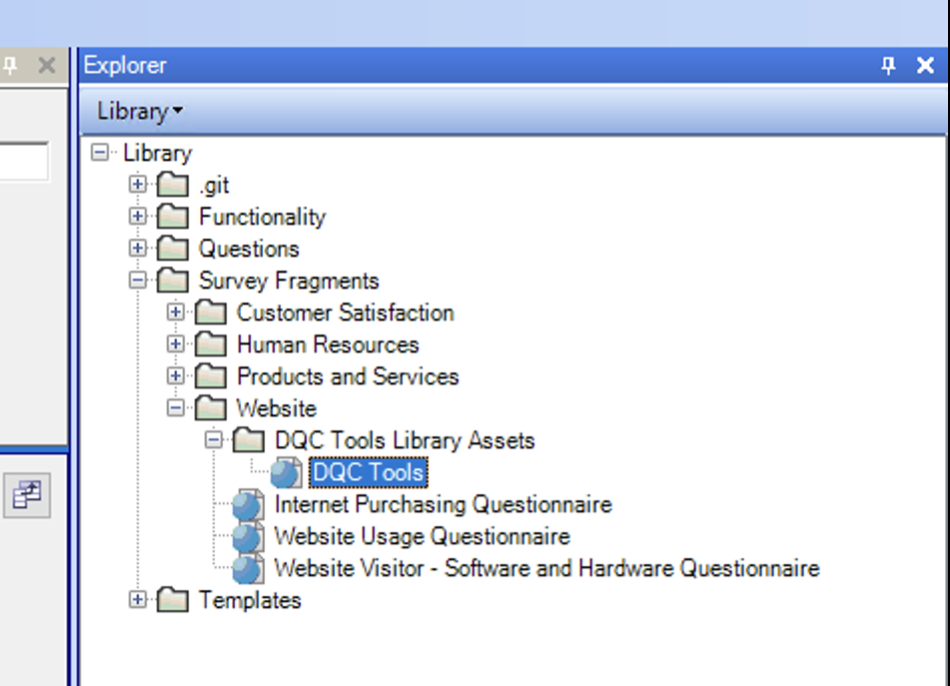
- Most likely under
- Click on the
- Using
Gallery items- Locate and select
DQC Tools. - Click on the
Insertmenu tab. Then clickFrom Gallery. - Select
Survey Fragments - Locate and select
DQC Tools.- You can filter by type with the
Websitetag.
- You can filter by type with the
- Double click on your
DQC Toolsgallery item. - Click on
Insert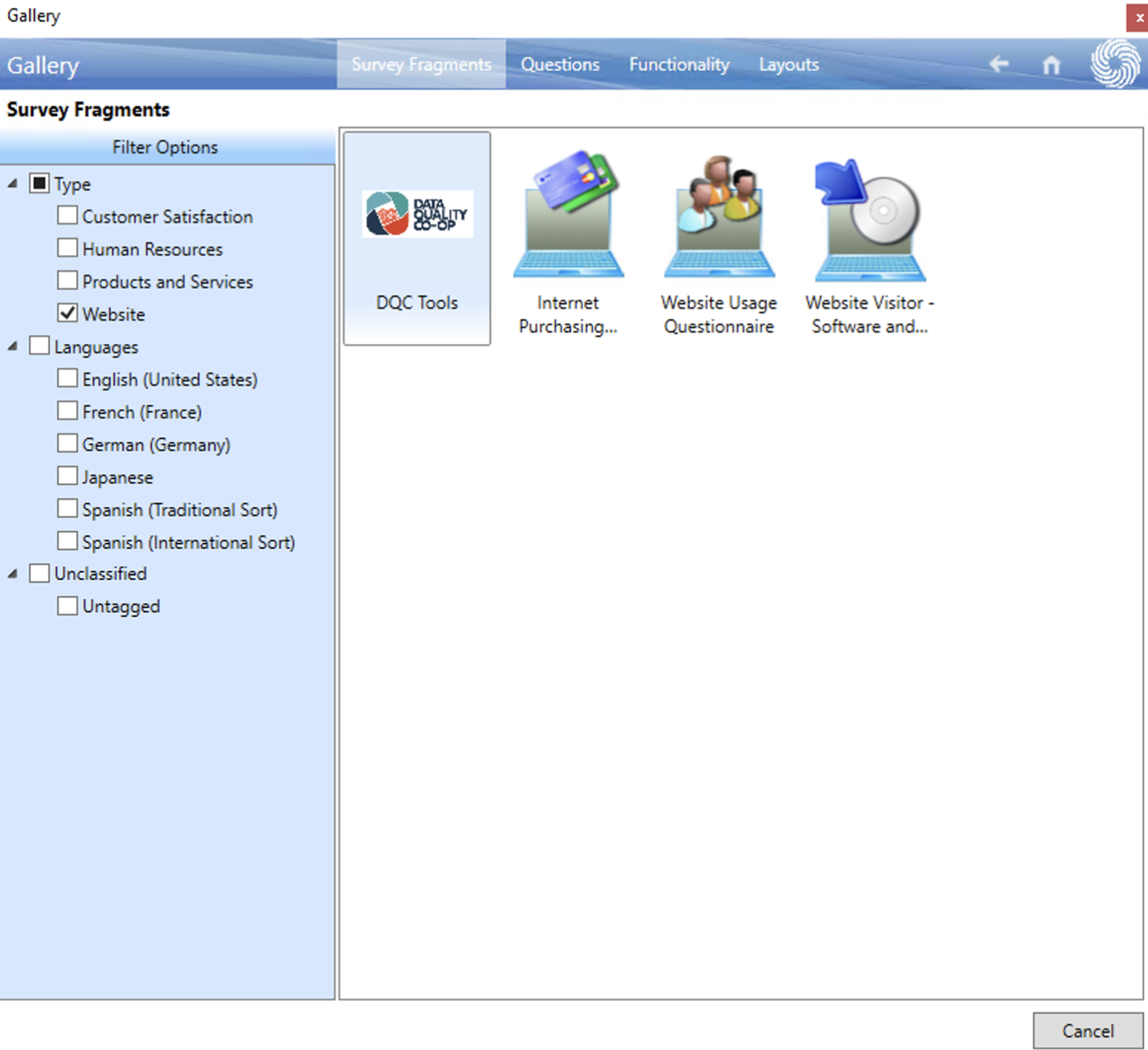
- Locate and select
3. Drag DQCToolsSection_MoveToRoutingStart to the top of the list.
In your survey routing, move the section named DQCToolsSection_MoveToRoutingStart to the very beginning of the routing list so it executes first during preview/run.
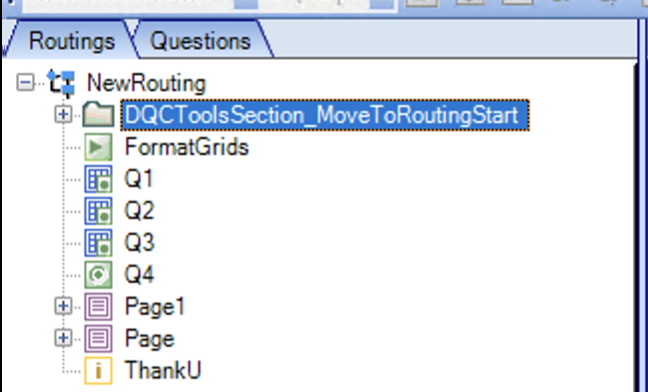
4. Save your survey.
DQC Tools survey assets will be automatically included when you save your survey in Author.
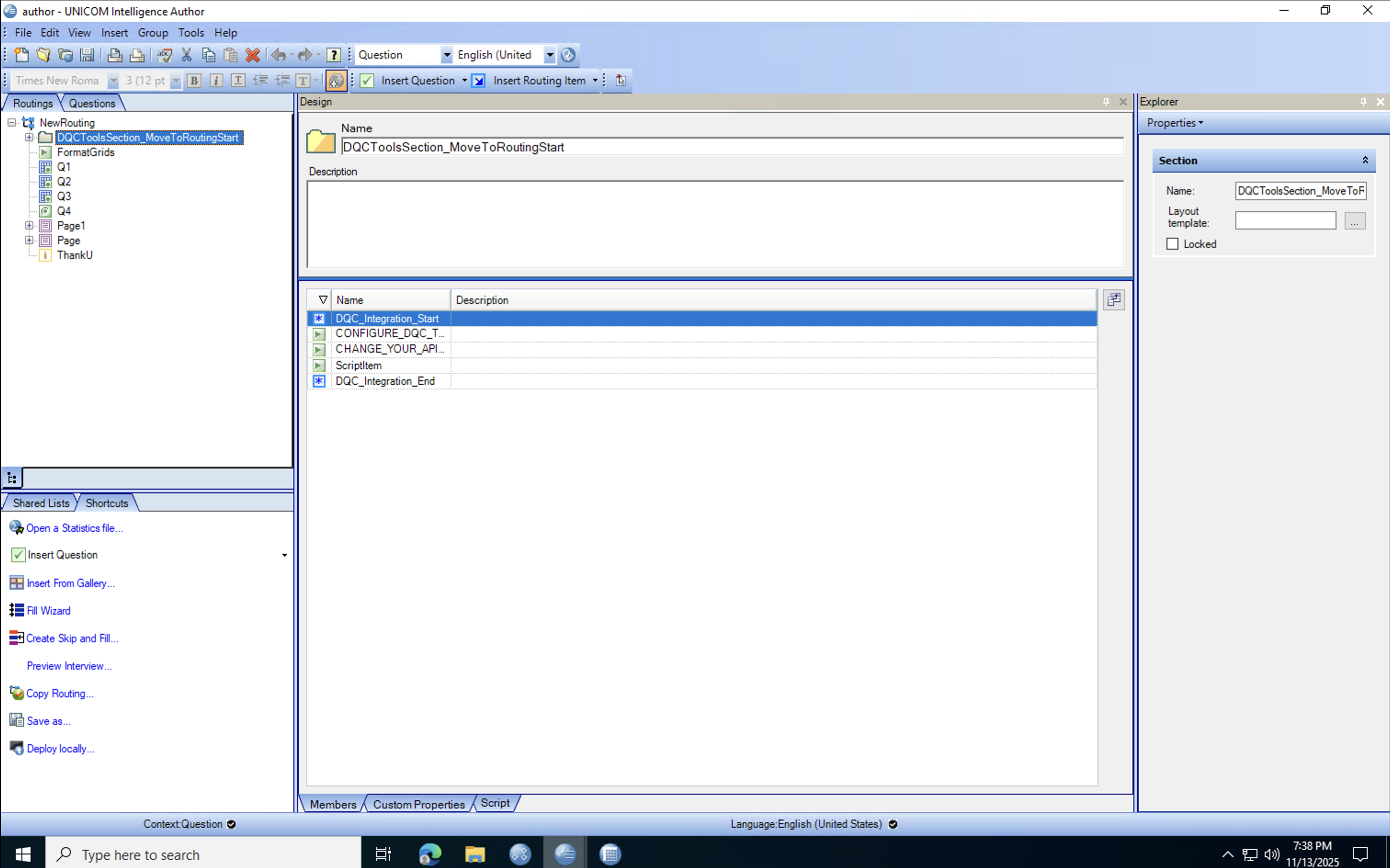
note
The DQCToolsSection_MoveToRoutingStart section must be placed at the beginning of the routing list so the global questions for the tools are loaded correctly.