UNICOM Intelligence - Professional License Integration
This guide covers Professional-specific steps to install the DQC Tools gallery item, add metadata, configure routing, run surveys in Professional mode, and inspect logs.
Before you start
- Complete the General Setup
- Restart Professional to load the gallery/library items.
Tutorial
1. Open an existing survey (example: "Coffee Shop")
You can run the project from the provided unzipped files, but it will not work on its own. The DQC Tools run in the background and populate hidden questions, so you need a survey that already contains other questions to see the integration in action.
- For testing, we typically open an existing survey (for example,
Coffee Shopin the video). - Open the survey inside the Professional application.
2. Insert the DQC Tools into Metadata
- From the Gallery or Library, insert the
DQC Toolsitem into the survey where you want it to appear. The insertion point determines where the assets will be placed. - The metadata block can be pasted anywhere in the Metadata section as a new question block.
3. Move the DQCToolsSection_MoveToRoutingStart section to the top of your routing
Move DQCToolsSection_MoveToRoutingStart to the very top of the routing list. You can cut and paste it if needed.
This is important because the integration initializes global questions and functions that must run before other routing logic.
4. Make sure our assets are added to your project files
These files look like layout or question template files. They are automatically added when you add the DQC Tools Gallery/Library item to your survey.
YOUR_SURVEY_FILES/
├── DqcQuestionHide.htm
├── DqcQuestionHide.htm_Files/
│   └── DQCToolsUnicom.js
├── DqcQuestionShow.htm
└── DqcQuestionShow.htm_Files/
    └── DQCToolsUnicom.js
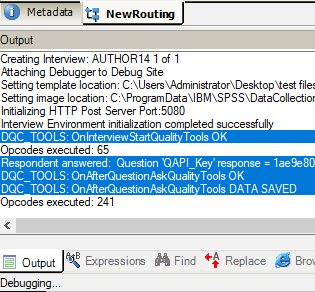
5. Run the survey and inspect the output logs
- Start the survey in Professional (click Start). You can view logs like this:
6. (Optional) Testing hidden questions and retry behavior
- For deeper testing, uncomment the test lines in the
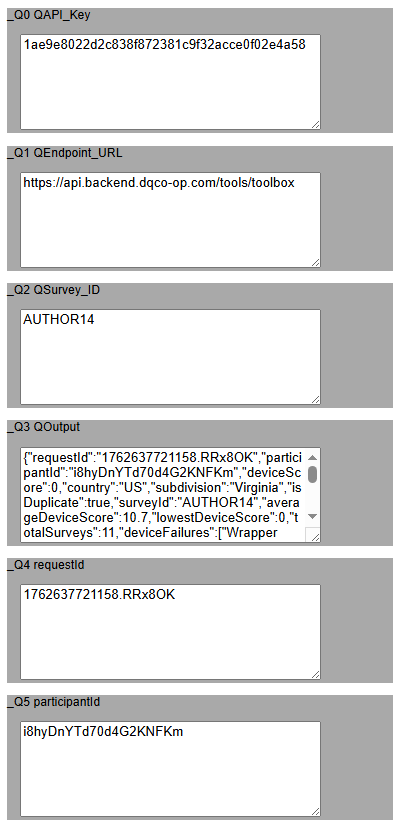
DqcQuestionShow.htmquestion template and run again — this will reveal previously hidden questions and images so you can confirm the toolbox behavior visually.

- You may see "Submission too quick" or other placeholder values while the toolbox attempts to retrieve data. Once data is available, the survey variables will be populated and saved with the response.
Video tutorials
Using Gallery/Library item
Using the Gallery/Library item is the recommended method.
Manual insertion (copy MDD + question template files)
You can add the DQC Tools manually by copying the metadata block from DQC Tools.mdd and the supporting files into your survey.
This tutorial is for advanced users who want to understand the manual steps involved and optionally modify a custom "Shell" Project Template.
Troubleshooting
- No logs or missing data: confirm the routing section is executed before other conditional logic, and double-check the gallery folder contains the
_Filesdirectories. - If the first question returns placeholder values (for example,
Submission too quick), the toolbox will typically retry on subsequent questions. - For testing only: uncomment test lines in the
DqcQuestionShow.htmquestion template to reveal hidden questions; keep these commented in production. - If you only see
Could not processin logs, please contact us for assistance. You should see valid requestId and participantId entries as shown in the videos.